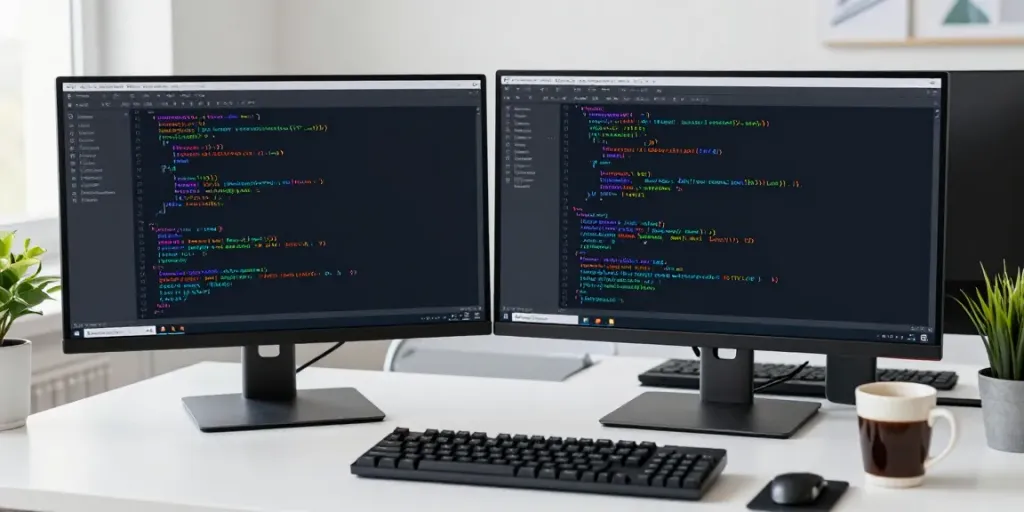
Introduction to Notepad++
In the swiftly evolving landscape of coding and software development, choosing the right tools can significantly bolster productivity and creativity. Notepad++, a free and open-source code editor, has become a staple for developers worldwide. Its lightweight nature and robust features make it an ideal choice for coding enthusiasts, whether they are writing scripts, developing applications, or simply jotting down notes. With a plethora of built-in functionalities, including syntax highlighting, code folding, and customizable themes, Notepad++ caters to various coding needs and preferences.
What is Notepad++ and Why Use It?
Notepad++ is a highly versatile code editor that supports a broad range of programming languages and file types. It distinguishes itself from other text editors through its rich feature set, which includes not only core editing tools but also advanced functionalities designed to streamline the coding process. Developers across different levels of expertise appreciate Notepad++ for its ease of use, efficiency, and customization options. For more information on getting started with Notepad++, visit https://notepad-app.co/.
Key Features of Notepad++
Notepad++ is packed with features that enhance coding experience and efficiency. Some of its key features include:
- Syntax Highlighting: Automatically highlights keywords, comments, and syntax for over 90 programming languages, making code easier to read.
- Code Folding: Allows developers to collapse or expand sections of code, improving readability and organization.
- Multi-Document Interface: Enables users to work with several files simultaneously, thanks to its tabbed interface.
- Powerful Search and Replace: Facilitates quick text searching and enables batch replacement across multiple files.
- Plugin Manager: Access to a variety of plugins that can extend Notepad++ functionality.
Benefits of Using Notepad++ for Developers
Using Notepad++ comes with numerous benefits that cater to the demands of modern software development:
- Lightweight Performance: As a lightweight application, Notepad++ launches quickly and runs smoothly, making it ideal for developers who value speed.
- Cost-Effective: Being free and open-source, it eliminates the financial barrier for individuals and businesses alike.
- Customizable Interface: Users can tailor the editor's appearance and functionality to suit personal preferences, optimizing their workflow.
- Regular Updates: The active development community continually improves the software, adding new features and fixing bugs.
- Community Support: An engaged user community provides a wealth of resources, tutorials, and plugins to enhance user experience.
Getting Started with Notepad++
For those new to Notepad++, the setup and navigation might seem daunting initially. However, the editor is designed to be user-friendly. This section will guide you through the installation process, setting up your workspace, and some basic functionalities to help you hit the ground running.
Installation Process for Notepad++
Installing Notepad++ is straightforward. Here’s a step-by-step guide:
- Visit the official Notepad++ website to download the latest version.
- Choose the appropriate installer (64-bit or 32-bit) based on your system specifications.
- Run the installer and follow the prompts to complete the installation.
- Once installed, launch Notepad++ from your desktop or Start menu.
Setting Up Your Workspace
Configuring your workspace can enhance your coding experience. Here are some tips:
- Customize Toolbars: Right-click on the toolbar to add or remove tools you frequently use.
- Select a Theme: Navigate to Settings > Style Configurator to choose a theme that suits your preferences.
- Arrange Open Files: Utilize the View menu to tile or tab multiple documents for easier comparison and editing.
Basics of Using Notepad++
Once your workspace is set up, familiarize yourself with the basic functionalities:
- Opening Files: You can open files using the File menu or by dragging and dropping files into the Notepad++ window.
- Saving Files: Remember to save files frequently using the shortcut Ctrl + S.
- Undo/Redo: Use Ctrl + Z to undo mistakes and Ctrl + Y to redo changes.
Advanced Features and Customization
After mastering the basics, you can explore Notepad++'s advanced features to maximize your productivity and tailor the editor to fit your workflow.
Utilizing Plugins for Enhanced Functionality
Notepad++ supports various plugins that can significantly enhance its functionality. Here’s how to utilize them:
- Access the Plugins menu and select Plugins Admin.
- Browse the list of available plugins and tick the ones you wish to install.
- Click Install, and Notepad++ will restart to apply changes.
- Explore the installed plugins to see how they can assist with tasks like file comparison, coding assistance, and more.
Customizing Themes for Improved User Experience
The look and feel of Notepad++ can greatly influence your coding experience. Here’s how to customize themes:
- Access Style Configurator: Navigate to Settings > Style Configurator to select from the pre-installed themes.
- Create Your Own Theme: Customize colors and styles for syntax highlighting based on your preferences.
- Dark Mode: Enable dark mode through the Preferences menu for a more comfortable viewing experience, especially during long coding sessions.
Macro Recording for Efficiency
Macros in Notepad++ can save time by automating repetitive tasks. To record and use macros:
- Open the Macro menu and select Start Recording.
- Perform the sequence of actions you wish to automate.
- Once complete, go back to the Macro menu and select Stop Recording.
- Save the macro for future use, allowing you to execute it with a simple keyboard shortcut.
Best Practices for Coding in Notepad++
Practicing effective coding techniques can lead to cleaner code and more efficient workflows. Below are best practices for using Notepad++ effectively.
Effective Code Folding and Structure
Utilizing code folding helps maintain a clean workspace, especially when dealing with lengthy scripts:
- Collapse Functions or Classes: Use fold markers in the left margin to hide completed sections, allowing focus on current tasks.
- Organize Code Logically: Structure your code with comments and consistent indentation to improve readability.
Regular Expressions for Search and Replace
Regular expressions (regex) can make search and replace operations more powerful:
- Familiarize Yourself with Regex Syntax: Spend time learning regex to enhance your search capabilities.
- Test Your Regex: Always test your regex patterns on small sections of your code to ensure accuracy before applying them globally.
Managing Multiple Documents Seamlessly
Notepad++ excels at handling multiple documents simultaneously, which is essential for developers working on interconnected projects:
- Tabs for Quick Access: Each open file is displayed as a tab, allowing quick switching between different documents.
- Vertical Split View: Use the View menu to tile documents vertically for easier comparison and editing.
Future of Notepad++ and Coding Trends
As technology continues to evolve, so too does the landscape of software development. Understanding upcoming trends can help you stay ahead of the curve.
Emerging Technologies Impacting Code Editors
Innovative technologies are shaping how developers interact with code editors. Key trends include:
- Artificial Intelligence: AI integrations are becoming commonplace, offering features like code completion and bug detection.
- Cloud-Based Development: Collaborative coding environments enable teams to work together in real-time, no matter where they are.
Trends in Software Development Practices for 2026
Looking ahead, several trends are emerging in the software development industry:
- Increased Focus on Security: With rising cyber threats, secure coding practices are becoming paramount.
- DevOps Integration: Development and operations teams are increasingly working together to streamline the software delivery process.
Community Contributions and Open Source Future
The open-source nature of Notepad++ encourages continual improvement through community contributions:
- Community Plugins: Users can create and share plugins that enhance editor functionality, making Notepad++ even more versatile.
- Ongoing Support: The active community ensures that Notepad++ remains relevant and up-to-date with modern coding standards.
Common Questions
What file types can Notepad++ edit?
Notepad++ can edit over 90 file types, including programming languages like C, C++, Java, Python, HTML, CSS, and many more.
Is Notepad++ free to use?
Yes, Notepad++ is free of charge. It is distributed under the GPL-3.0 license, ensuring that users can download and use it without any fees.
How do I install plugins in Notepad++?
Plugins can be installed directly through the built-in Plugin Admin. Just select the desired plugins, click install, and restart Notepad++ to access them.
Can I customize keyboard shortcuts in Notepad++?
Absolutely! You can customize keyboard shortcuts for various functions via the Shortcut Mapper found in the Settings menu.
What are the benefits of using dark mode in Notepad++?
Dark mode reduces eye strain, especially during long coding sessions, and can help conserve battery life on laptops.